A BTSE sub-account lets you separate trading strategies, isolate risk, and (with permission) withdraw crypto directly from each sub-account.
This article covers what sub-accounts can do, how to create one, and how to manage permissions, including our new Crypto Withdrawal feature.
General Information About BTSE Sub-Accounts
Q: What is a BTSE sub-account?
A: A BTSE sub-account is a feature designed for Professional Traders to implement various trading strategies and separate assets for risk management purposes. It enables the owner of the Main account to manage multiple sub-accounts, each set with different strategies and transaction management options.
Q: Do sub-accounts have the same KYC, VIP, and MM (Market Maker) Level as the Main Account?
A: Yes, sub-accounts will inherit the same KYC, VIP, and MM levels as their associated Main account.
Q: How will the VIP and MM Levels be calculated?
A: The VIP and MM Levels are calculated based on the combined total assets and trading volumes of the main account and all of its sub-accounts.
Q: How many sub-accounts can I have?
A user with a main account can have up to five (5) sub-accounts. However, users who are VIPs are permitted to create more than five sub-accounts.
Q: Can main and sub-accounts trade with other sub-accounts under the same account?
A: No, trading between a main account and its sub-accounts, or between sub-accounts under the same main account is not allowed.
Q: If my sub-account gets liquidated, will it affect my main account?
A: No, liquidation of a sub-account will only affect the collateral in that specific sub-account, without impacting the main account.
Q: Can sub-accounts participate in special BTSE campaigns?
A: No, only main accounts can be used to participate in special BTSE campaigns. Sub-accounts do not have this privilege.
Q: Can I fund my sub-accounts with crypto deposits?
A: Yes. Sub-accounts can receive crypto deposits once the main account enables the Crypto Deposit permission for that sub-account. Both normal and custom-login sub-accounts are supported, and no email OTP or 2FA codes are needed to perform a deposit transaction.
Q: Can sub-accounts withdraw crypto to external wallets?
A: Yes. Sub-accounts can perform crypto withdrawals once the main account enables the Crypto Withdrawal permission for that sub-account. The feature is available on BTSE’s Web interface; we will roll out app support in the future. Sending crypto via the Send To feature from a sub-account is not supported.
How to Create a Sub-Account on BTSE
Step 1:
Log onto your BTSE account.
From the welcome page, proceed to your Dashboard.
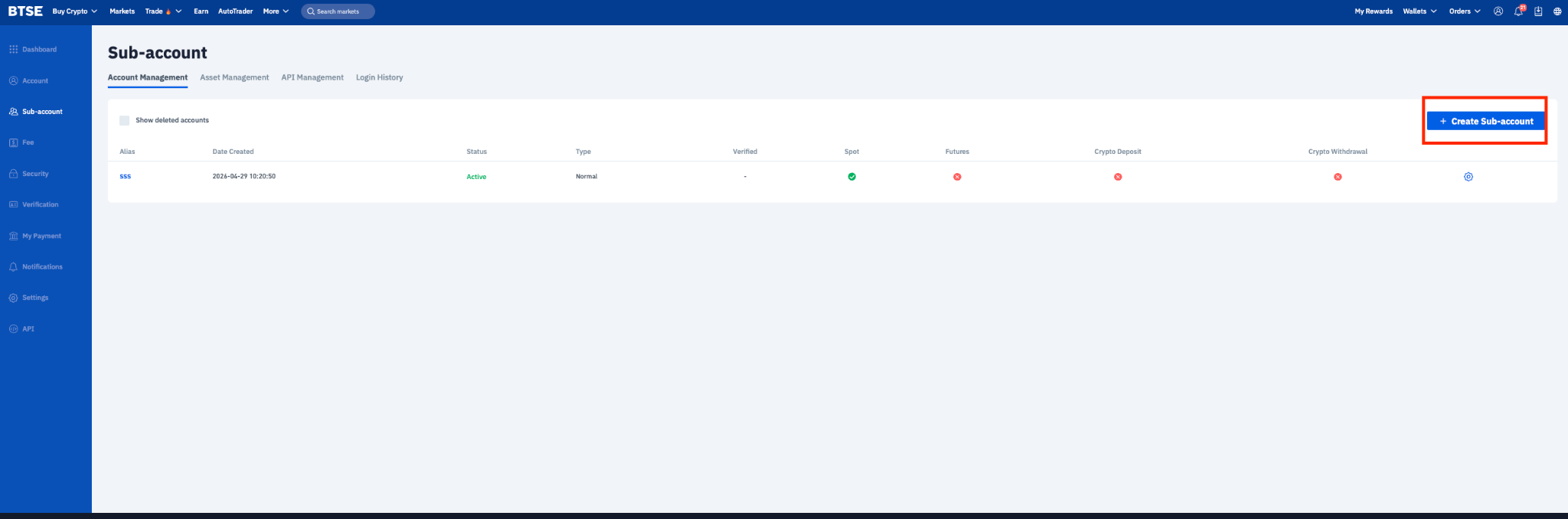
On the left side of your screen, select Sub-Account and click Create Sub-Account.
Step 2:
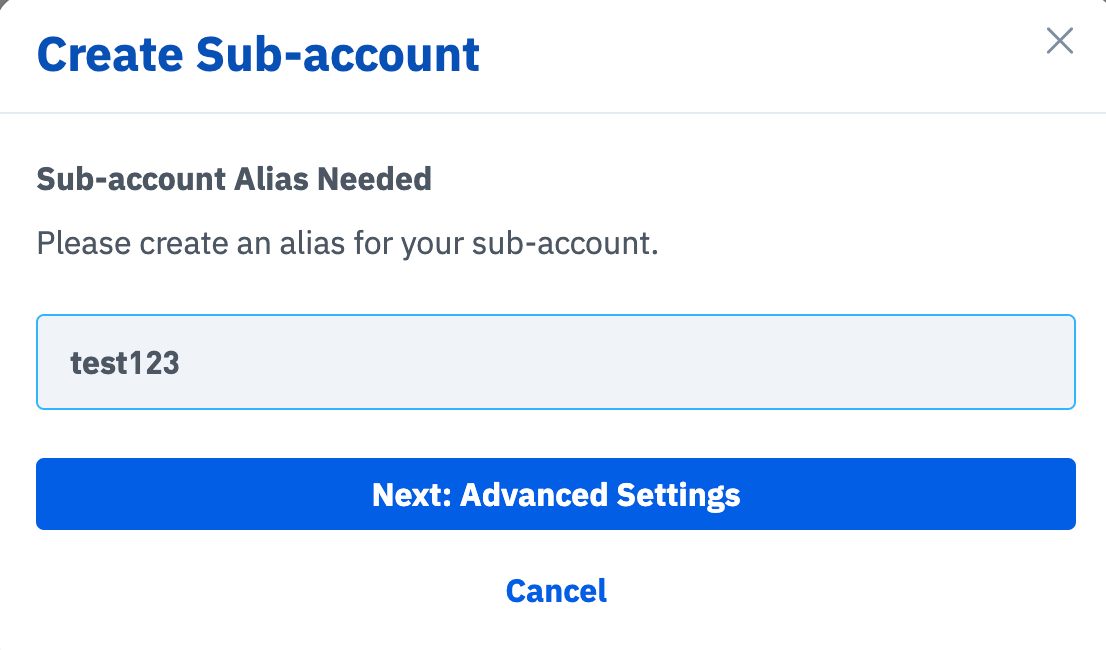
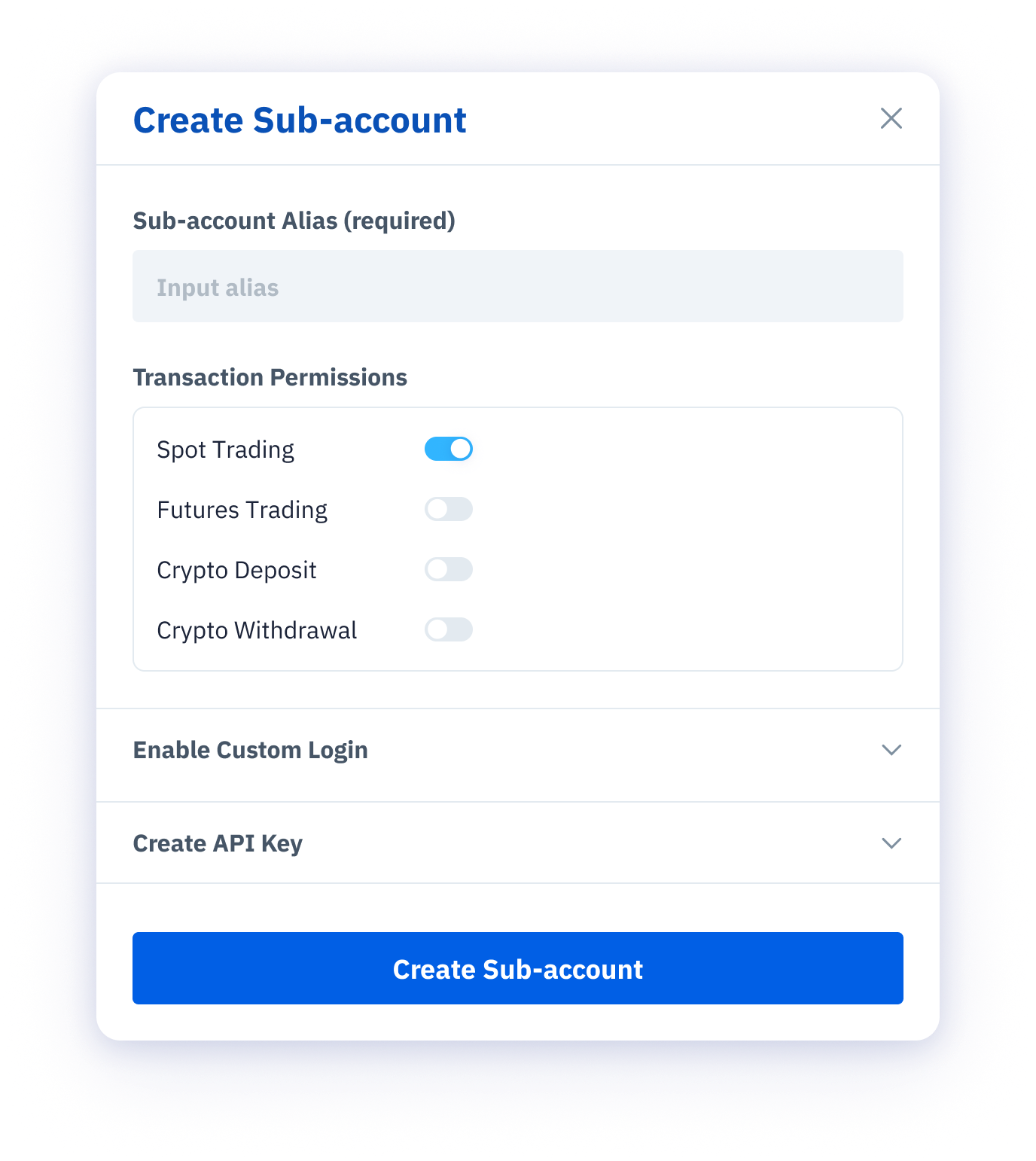
Enter your desired sub-account username and click Create New Sub-Account.
Step 3:
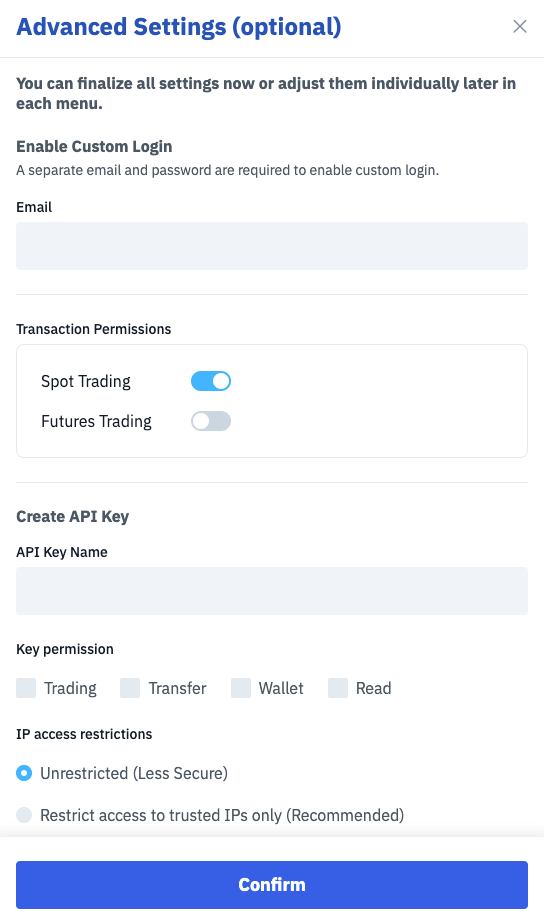
Go to the Advanced Settings to customize more detailed account settings such as custom login credentials and API key(s). Users will be asked to enter their email Verification Code and 2FA Authentication Code to confirm their changes.
Step 4:
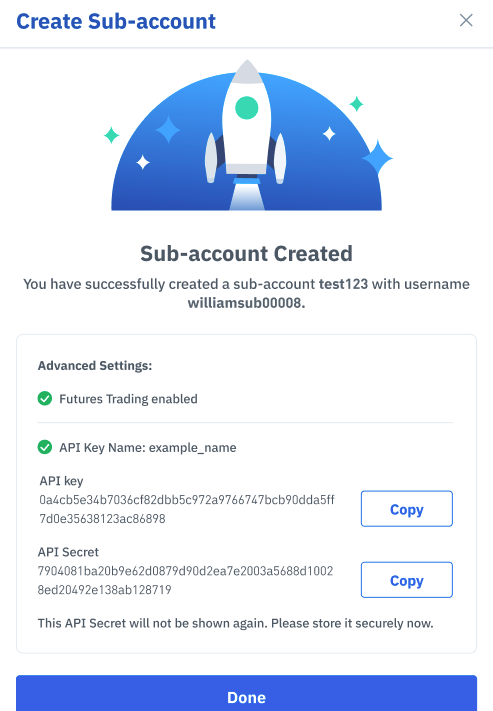
A pop-up notification message will be shown on your screen to confirm that your sub-account has been created.
Key Sub-Account Functions on BTSE
Q: What are the available key functions for Sub-Accounts?
A: Sub-accounts on BTSE have several key functions available:
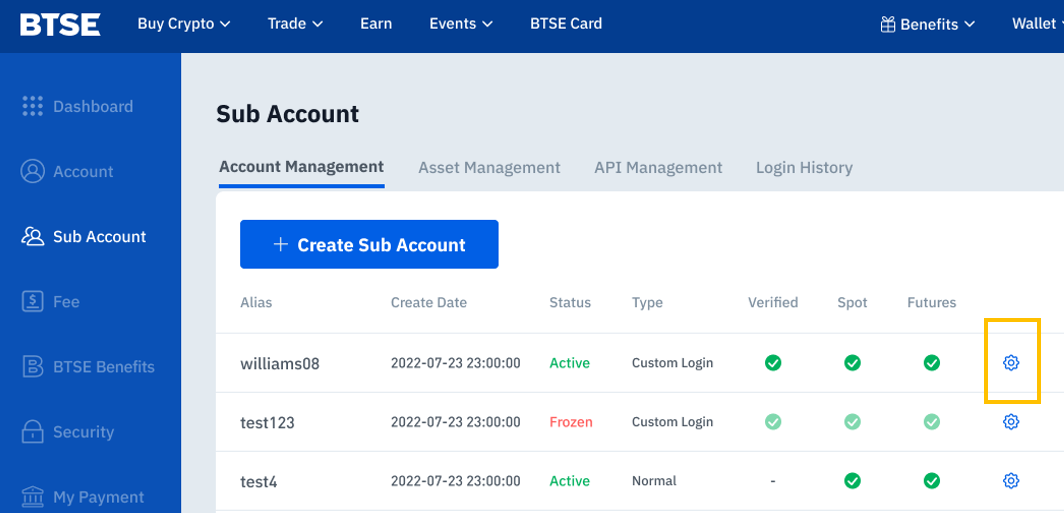
Account Management: Users can create, edit, or delete sub-accounts within this function. It provides a list of sub-account usernames, creation dates, status (whether active or frozen), type, verification status, and the functions available to each sub-account (such as Spot trading, Futures trading, Crypto Deposit, and Crypto Withdrawal).
Asset Management: This function displays the total balance of the main account and the individual balances of each sub-account. It also includes a feature to transfer assets between accounts.
Approvals: Within this tab, the main account holder can approve or decline pending transactions that require authorization for sub-accounts.
API Management: Sub-accounts can manage API access, allowing for automated trading or integration with third-party services.
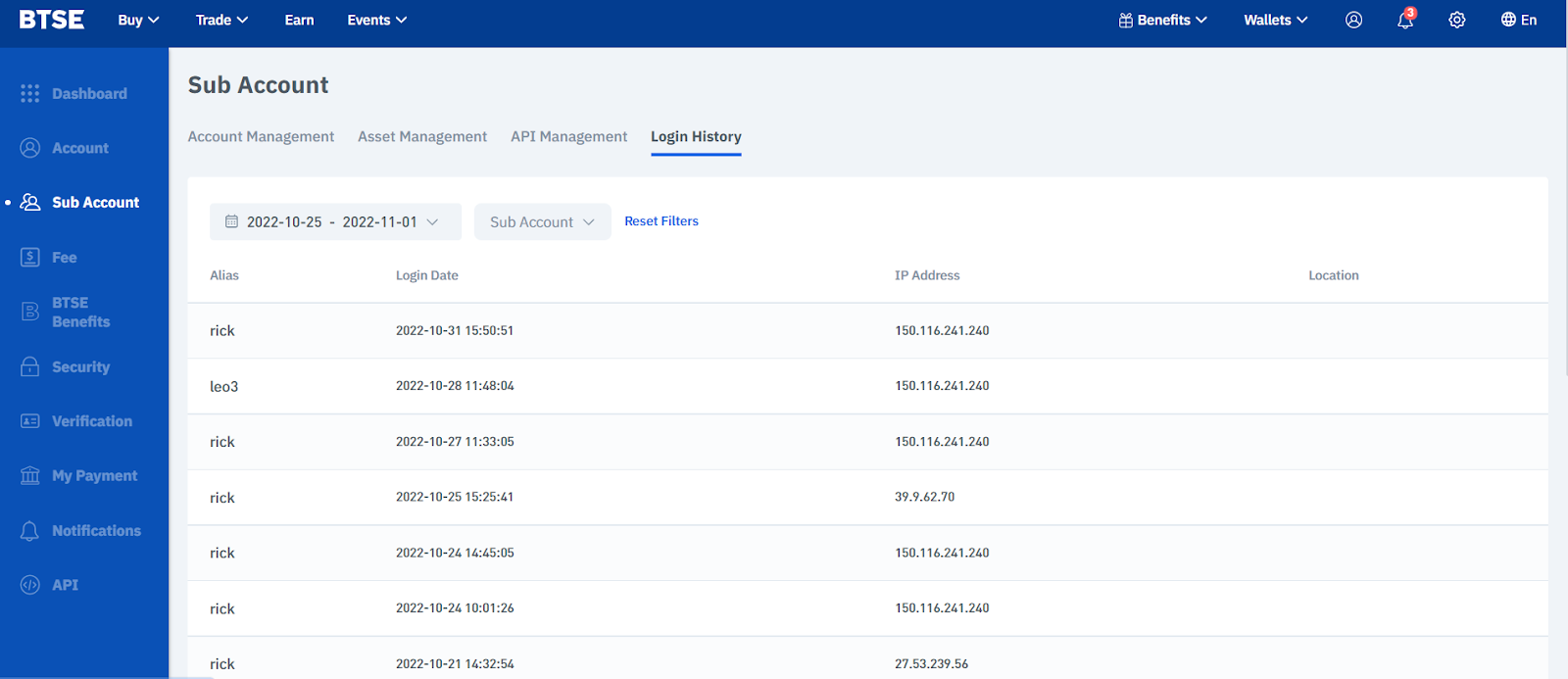
Login History: This function keeps track of login activities, providing the main account user with a record of when and how sub-accounts have been accessed.
Sub-Account Management Questions
Q: Where can the sub-account's details and permissions be managed?
A:
Step 1:
Click the blue settings icon on the Sub-Account page, under the Account Management tab.
Step 2:
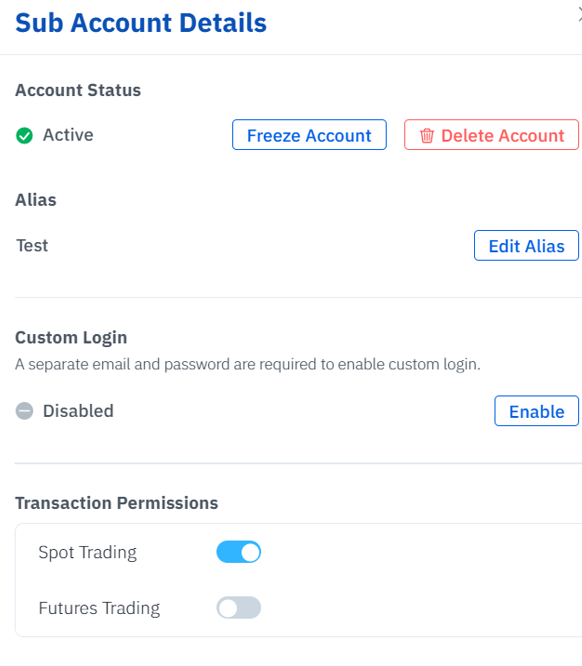
You will be directed to the Sub-Account details screen as shown below.
Step 3:
From this page, the user can modify the following:
a. Account Status
Freeze Account: Requires Email Verification Code and 2FA Authentication Code. Frozen Sub Accounts can no longer be used for trading and asset transfers can only be done through the main account.
Delete Account: Delete Account: Only sub accounts with zero balances can be deleted. Once a sub account is deleted, assets can no longer be transferred and any deposit addresses previously assigned to the sub-account will be marked as expired. Upon deletion, the main account will be able to download the sub-account's transaction history for no longer than the past 180 days.
b. Alias
The alias function allows the main account holder to assign or edit an alias or nickname to each sub-account, for easier reference. This alias must be unique and cannot be duplicated across sub-accounts.
c. Custom Login
Allows the main account holder to create a username and password to gain access to the full account or specific sub-account.
d. Permissions
Allows the main account holder to define transaction types available to the sub-account, with the default being Spot trading. To enable Futures trading, Crypto Deposit, or Crypto Withdrawal, the main account holder can toggle each permission on the Sub-Account details page.
Q: How can Custom Login credentials be enabled for sub-accounts?
A:
Step 1:
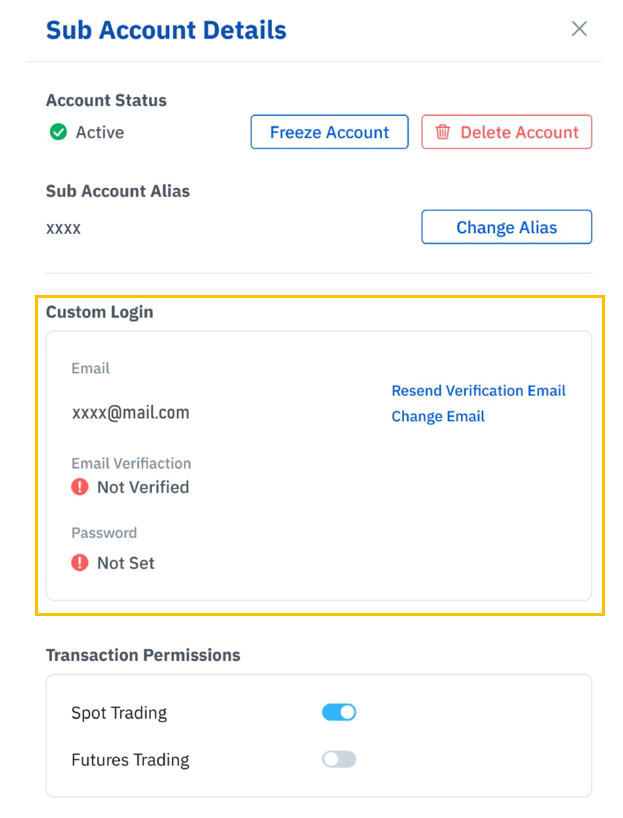
From the sub-account screen, users can click Enable under the Custom Login field and proceed to enter the email address to be registered. This feature also allows users to re-send email verification links for account verifications and changes of email address.
Step 2:
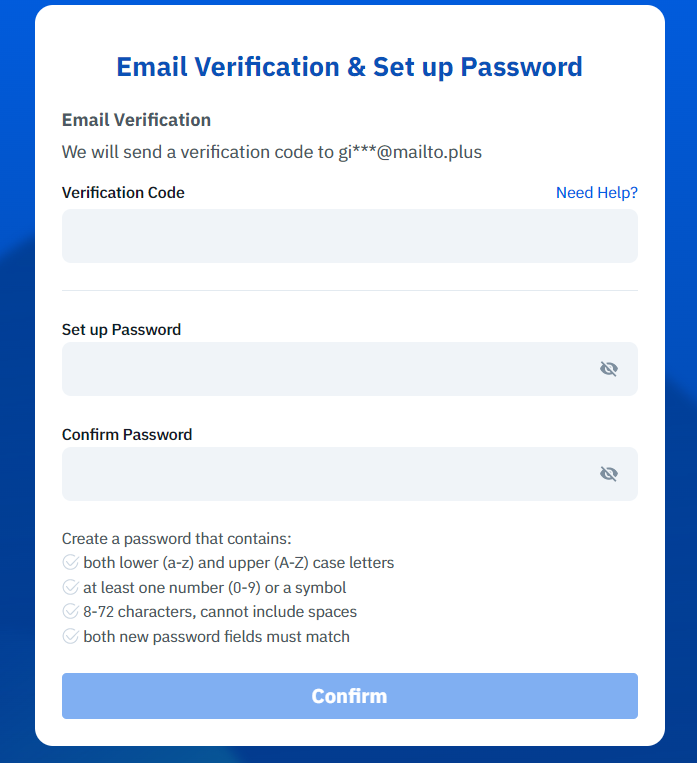
After entering the sub-account's email address, the main account holder needs to log into BTSE via the link sent to the registered email address, input the email Verification Code, and assign a password.
Crypto Deposit
Q: How do I enable Crypto Deposits for a sub-account?
A: As the main account holder:
Go to the Sub-Account details page for the sub-account you want to manage.
Under Permissions, switch the Crypto Deposit toggle on.
Q: How does the sub-account deposit crypto once permission is granted?
A: After permission is granted, the sub-account user can access the deposit page from any of these entry points:
Account dropdown
Spot wallet page
Wallet Overview
Trading page — "Need more funds?"
Q: Is KYC required for sub-account crypto deposits?
A: There is no KYC restriction for sub-account crypto deposits. As long as the main account's Crypto Deposit toggle for the sub-account is on (and the feature is enabled for your account), the sub-account can deposit regardless of the main account's KYC level.
Crypto Withdrawal
Q: What verification is required to enable crypto withdrawal for a sub-account?
A: The main account must have completed ID Verification to enable crypto withdrawal for any sub-account. Sub-accounts inherit the main account's verification status.
Q: How is a sub-account crypto withdrawal verified?
A: Verification depends on the sub-account type:
Normal sub-account — Uses the main account's email OTP and the main account's 2FA.
Custom login sub-account — Uses the sub-account's own email OTP and the sub-account's own 2FA.
Asset Management & Transfer Assets
Q: Which functions can be performed under the Asset Management tab?
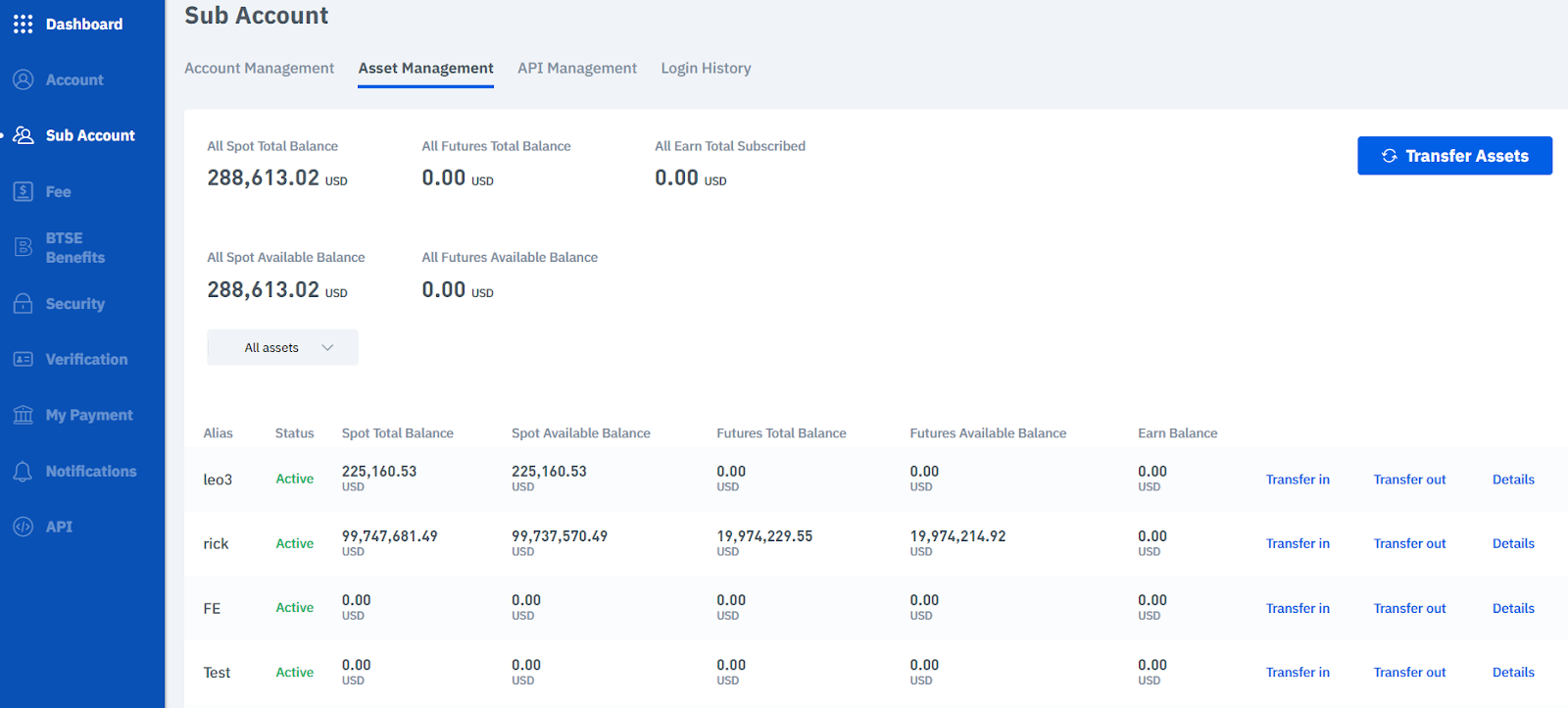
A: The Asset Management tab allows a user to view the main account and all sub-accounts' balances, and also perform asset transfers.
Q: How can assets be transferred between sub-accounts?
A: To transfer assets between sub-accounts, follow these steps:
Step 1:
Navigate to the Asset Management tab.
Step 2:
Select the sub-account from which you wish to transfer assets in or out.
Step 3:
Complete the transaction, which requires verification through an email Verification Code and Google Authenticator Authentication Code for security.
Q: How can I check the balance of each cryptocurrency in my sub-accounts?
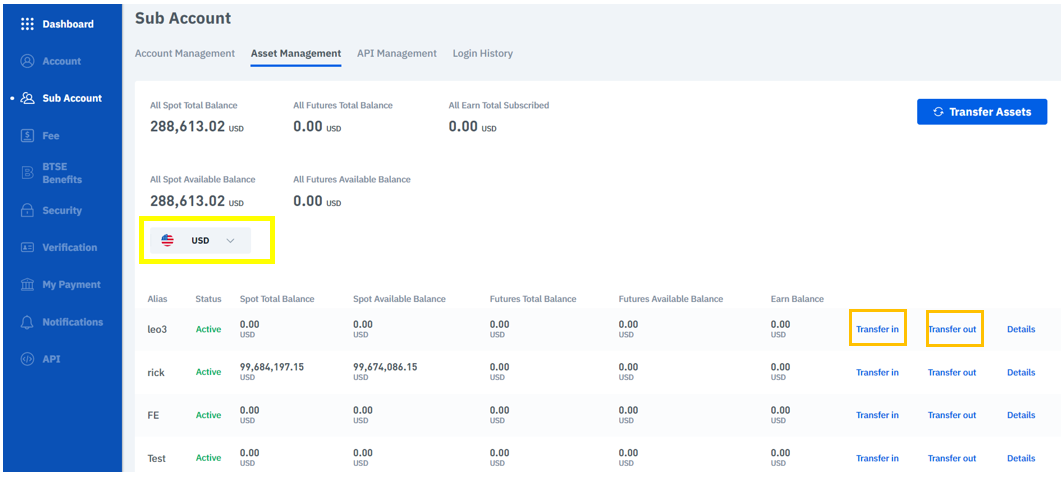
A: To check the balance of each cryptocurrency:
Step 1:
Go to the Asset Management tab.
Step 2:
Use the dropdown menu to select the cryptocurrency whose balance you wish to view. This will show the balance for each cryptocurrency across your sub-accounts.
API Management
Q: What is the API Management feature for sub-accounts?
A: The API Management feature enables users to create and edit API keys to access their sub-accounts. This allows users to securely manage and automate their trading strategies or data analysis for their sub-accounts.
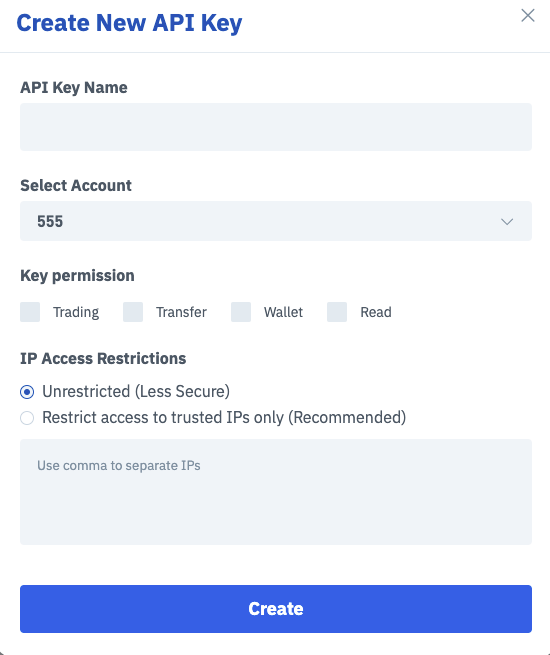
To create an API key:
Step 1:
Click the Create API button.
Step 2:
Select the sub-account you wish to generate an API key for.
Step 3:
Provide a name for the API key.
Step 4:
Choose the permissions for the key and set any IP restrictions.
Step 5:
Complete the process with an email One-Time Password (OTP) and Two-Factor Authentication (2FA) for security.
Login History
Q: What is the Login History feature for sub-accounts?
A: The Login History feature allows users to review all login activities for their sub-accounts. This includes viewing the history by date, IP address, and location. It serves as a security measure, enabling account holders to monitor and verify all access instances to their sub-accounts, ensuring that there is no unauthorized access.
Still need help?
If you have further questions, please contact our Support team.

